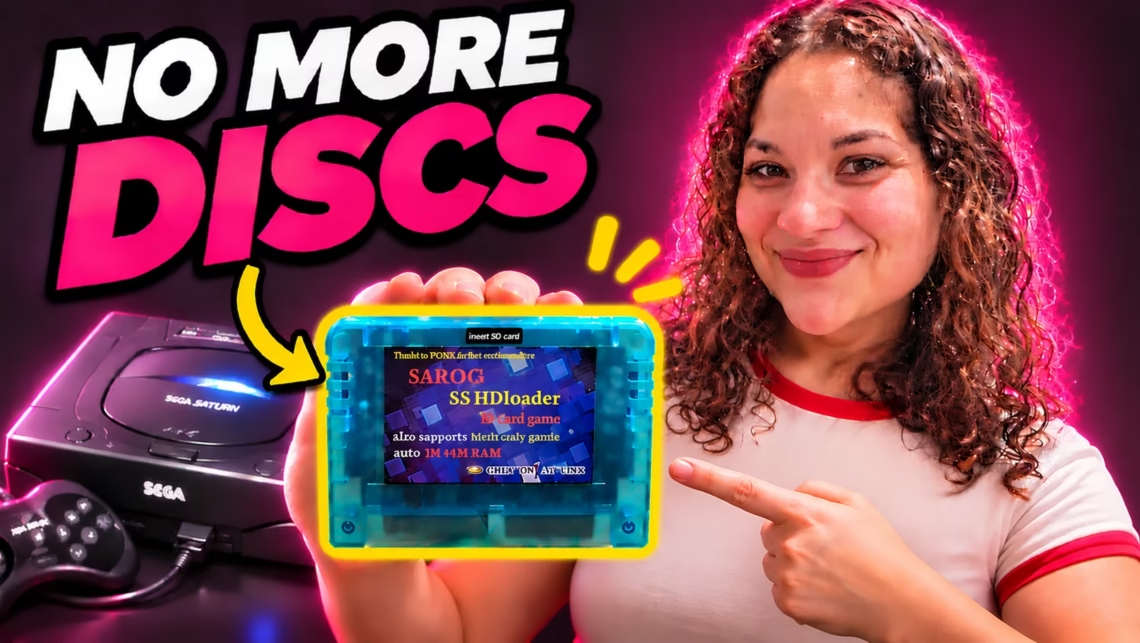
The Saroo is an open source cart that connects to the cartridge slot of the Sega Saturn and allows you to play your games from a micro SD card, no CDs needed. It shows a custom menu where you can choose whatever games you place on the micro SD card. If you have an original Sega Saturn, this is the device for you.
In this episode, we will show you how to get a Saroo, run a custom version of the Saroo menu, update your firmware, set up your games and even install a custom cheat pack that we created just for this video.
So let’s get into it. We’ll begin by describing some of the features of the Saroo and what it does that other optical drive emulators don’t.
Our Saturn and why we chose the Saroo
Here we have an imported Japanese Sega Saturn that we customized with a cool clear case and a new power supply. Originally, we had installed an ODE device called Fenrir, which hooks up in between the console and the CD drive. It worked for a while, and then it didn’t.
We then started the search for a replacement, and that’s when we found the Saroo ODE. And this, we think, is the all in one device for the Sega Saturn. Like we mentioned, it allows you to play games from an SD card.
It also has a built in expansion RAM cart, you know, the cart you need for the extra animation and features in games like X-Men vs. Street Fighter. And it handles both the 1 MB and 4 MB options, so you don’t have to worry about swapping carts.
It lets you play games from any region, plus it even acts as a memory card and game save manager. It shows box art for your games, and when using custom firmware, you even get cheats. Again, the Saroo is like a Swiss Army knife cart for your Sega Saturn.
Games also load faster from the SD card than they do from the original CD drive. And if you still want to play your original discs, you can. Just pick Load Game Disc from the menu and the Saturn boots the disc in the drive like it normally would. That was a big plus for us, since our drive still works great with original discs.
And it’s open source to boot, and we want to thank tpunix for creating it and the cool people creating custom menus like martinx72.
Where to buy a Saroo
Now, how can you get your hands on one of these? Well, we found ours on AliExpress back in August of 2024, for $43.89 with shipping. Prices range between 25 and 50 dollars on AliExpress, so it may be even cheaper than when we got it. You can also find it on eBay for similar prices.
The listing where we bought ours is now $98, which is ridiculous, so we’re no longer linking to it. Feel free to get it wherever you want. This is not sponsored in any way by AliExpress or eBay, it’s just us sharing our experience.
Compatibility
Before you buy one, a quick note on compatibility. The SAROO works with pretty much every version of the Saturn, from any region, except the HiSaturn Navi. Some of the earlier models can have audio issues, so try to get one of the later models, the ones with the round buttons. RetroRGB has a great breakdown of all the details: new test reveals possible source of Saroo problems.
And to be fair, the Saroo isn’t perfect. Some games still have issues, and it doesn’t support Video CDs. The community keeps a compatibility list on GitHub, so check it for the games you care about.
Step 1: Format the micro SD card
Once you have your cart, the next step is setting up the SD card to run the latest version of the custom martinx72 firmware and menu.
- First, we are going to format the micro SD card. We are using a SanDisk 128 GB card, which should provide plenty of space for our games.
- We like to use the Raspberry Pi Imager, because it’s available for all operating systems and it works well.
- Please note that this will erase all data on the micro SD card, so make sure you have created a backup of your data.
- Select OS, scroll all the way down and select “Erase”, then “Next”.
- Carefully select your storage device and click Next.
- Finally, select Write. Handle any authorization prompts and that’s it. Your card is now formatted.
- The card will be renamed to Boot, so just go ahead and change the name to whatever you want, like we did with “SAROO-ODE”.
- You can also use the native disk formatting software on your Windows, Mac, or Linux computer. Just remember to select FAT32 or exFAT for the file format. We chose FAT32 because it is more widely compatible.
Step 2: Install the martinx72 firmware
- Now that the card is mounted, it’s our chance to download the firmware to the card.
- We are using the martinx72 firmware because it has more features and it’s based on the original tpunix firmware.
- Just go to the martinx72 GitHub page and download the latest firmware. For us, it’s version SS_v20260514.
- Extract the archive and place the extracted SAROO folder on the root of your micro SD card.
- Eject the card and place it in the Saroo cart with the pins facing forward.
- One of the things we recommend is leaving the cart in the Saturn and just removing the micro SD card. That way you reduce the wear and tear on the cartridge slot of the Saturn, a console that launched in Japan on November 22, 1994, so it’s about to be 32 years old.
Step 3: Update the firmware
Next step, updating the firmware. Before we start: update the firmware at your own risk. We’re not responsible for bricked devices.
- Turn on the console. You’ll see the SEGA logo, followed by the SAROO Boot Menu.
- Now look at the bottom of the screen. It shows three numbers: MCU, SS, and FPGA. The first two are the build dates of the microcontroller and Sega Saturn firmware, and they come from the files on your SD card.
- The last one, FPGA, stands for field programmable gate array. It’s the chip that imitates the Saturn’s CD hardware, and unlike the other two numbers, it comes from the cartridge itself. That’s the one we care about. Right now ours says 05, and the new firmware needs 06.
But how do you know which firmware is actually installed on your cartridge? We couldn’t find an exact way to check this in any documentation. The FPGA number tells you the chip’s version, but the MCU bootloader version isn’t shown anywhere on screen.
We did notice one clue: when we put the version 20250222 files on the card, the Firm Update option never showed up. That suggests our cart already had everything that version installed, so we could go straight to the newest one. Your cart might be different, and that’s exactly why we say to update at your own risk.
- If your firmware is older than SS_v20250222, install that version first and run its update until the option disappears.
- Back up your SD card. Then select Firm Update from the menu, and don’t turn off the console while it’s running.
- If it looks stuck, give it at least a minute.
- When it’s done, you’ll see the message “Update Finish! Please PowerOn again!” Turn the console off and back on.
- If Firm Update is still in the menu, run it again. Sometimes it has to update the FPGA and the MCU bootloader separately.
- Once the option is gone, check the bottom of the screen. It should now say FPGA 06.
Step 4: Add your games
- Now we put the micro SD card back in the computer and get ready to transfer games and cheats.
- Inside the SAROO folder, there’s a folder called ISO. That’s where your games go, and the rule is simple: one game per folder.
- Each game needs to be in CUE and BIN format, with the .cue file sitting right inside the game’s folder, not in another folder inside it. If your games came as CHD files, you’ll need to convert them back to CUE and BIN first.
- The name of the folder is what shows up in the SAROO menu, so name it however you want it to look. We went with the title followed by the region, like “Panzer Dragoon (USA)”.
- You can rename the folders as much as you like, but don’t rename the BIN files. The .cue file lists them by name, and if they don’t match, the game won’t load.
- For games with more than one disc, give each disc its own folder, with names that only differ by the disc number, like “Policenauts (Disc 1)” and “Policenauts (Disc 2)”. When the game asks for the next disc, you eject the SD card and put it back in.
Step 5: Install our cheat library
- Now for the fun part: cheats. We built a cheat library for over 170 Saturn games, and it’s free on our GitHub.
- Download it (or grab the v1.0.0 release), then copy the CHEAT folder into the SAROO folder on your card. That’s it.
- Most games are matched by the ID on the disc, so they work no matter what you named your folders.
- Now when you pick a game that has cheats, a menu pops up before it launches, and you choose which ones to turn on.
- Keep in mind these are community codes, and we haven’t tested every one of them. If a game freezes, turn the cheats on one at a time to find the bad one.
- If you want to make your own cheats, MarTinX has a Cheat Builder that runs right in your browser. Type in the Action Replay codes for your game, save the file, and drop it into the cheat folder.
The cheat files were converted from the libretro Sega Saturn cheat database (CC BY-SA 4.0) using MarTinX’s Cheat Builder library.
Box art
Put the micro SD card back into the cart and we are ready to play some games. One of the cool features of the Saroo is that it shows box art for your games.
It uses the game ID on the disc, so the name of the game folder doesn’t need to match in order to get box art. Fan translations and hacks might not get box art, like what happened with some of our games.
More features worth checking out
Before we jump into the games, here are a few more features worth checking out. The martinx72 menu adds a File Browser, so you can look through your SD card right from the Saturn, with image previews and CD audio playback. The Saroo can also play audio CD images, including CD+G karaoke discs, and both controllers work in the menu.
You can customize the menu too. Drop a GIF named mainmenu_bg.gif in the SAROO folder for a custom background, and yes, animated GIFs work. You can add menu music, sort your games alphabetically, and even group them into categories, all from the SD card. And if you don’t want to edit the config file by hand, MarTinX has browser based tools for editing the settings and managing your save files, right next to the Cheat Builder.
Games we love
The Sega Saturn has a fantastic library of games, like Virtua Fighter 2, Sega Rally, and Die Hard Arcade, or Dynamite Deka in Japan. The Sega Saturn was a 2D powerhouse, with excellent ports of the Street Fighter Alpha series and X-Men vs. Street Fighter.
Elevator Action Returns is an arcade classic from Taito, and for years the Saturn version, ported by Ving, was the only way to play it at home. You can now get it on the Nintendo Switch and other modern platforms, and no matter where you play, you need to give this game a chance. It’s just that awesome.
Wrap-up
And that’s the Saroo. For about 40 dollars, you get games from an SD card, a built-in RAM cart, save management, box art, and cheats, all in one cart.
And if you also have a Nintendo 64, our tutorial on how to upgrade and configure the SummerCart 64 might be for you.
Links
- Our SAROO cheat library (171 Saturn games, free)
- Cheat library v1.0.0 download
- Saroo compatibility notes (RetroRGB)
- Community game compatibility list
- MartinX72 SAROO firmware and menu
- MartinX72 cheat builder
- MartinX72 config editor
- Original SAROO project by TPUNIX
- Raspberry Pi Imager
- Our SummerCart64 tutorial for Nintendo 64