What if connecting to your house to play your Steam games remotely was as easy as running two terminal commands in Bazzite? If you’re thinking “I don’t have a public IP address, I’m behind CGNAT”, there is an easy way around it. You can also do this on a Windows machine. Bazzite just makes it much easier.
What you need
- Bazzite running on your desktop PC
- A good internet connection at home, and some games installed
- An Android or iOS device, and ideally a controller
What is CGNAT, and do you have it?
CGNAT stands for Carrier-Grade Network Address Translation. Instead of giving your house its own public IPv4 address, your provider has you share public address space with other customers, so traditional port forwarding on your router can’t create the incoming connection you need.
To check, compare the WAN IP address your router reports with the public IP address the internet sees. On Bazzite, open a terminal and run curl ifconfig.me. If your router’s WAN address is in the range 100.64.0.0 to 100.127.255.255, that’s the range reserved for CGNAT. Instead of opening ports or convincing your provider to give you a public address, we go around the problem.
Step 1: Set up Sunshine
Open a terminal on Bazzite and run:
ujust setup-sunshine
Sunshine is one half of the solution. Together with Moonlight, these open-source programs let you connect remotely to your PC and play your games. Choose enable, follow the prompts, and enter your user password if asked. Depending on your setup you may need to reboot.
Once Sunshine is running you can open its management page in a browser. The first time, you’ll create a management username and password. Remember them, because you need to come back to this page to pair your phone.
Step 2: Enable Tailscale
Next, run:
ujust enable-tailscale
Think of Tailscale as your own private network of devices. Each device gets its own Tailscale IP address, which is how we get around CGNAT. We aren’t getting rid of CGNAT, just going around it, and we don’t need to expose the gaming PC to the public internet.
Tailscale needs you to authenticate the computer. A link appears in the terminal: hold Ctrl and click it, choose your login method and follow the instructions. To double-check, run tailscale ip -4. You should see an IP address. Write it down, because you’ll need it in a minute.
Step 3: Set up your phone
- Install Tailscale on your Android or iOS device and log in with the same Tailscale account you used on the Bazzite PC.
- Install Moonlight. Sunshine is the host on the gaming PC, and Moonlight is the client you play from.
- Open Moonlight. It will try to find your PC automatically. Ours didn’t, but that’s what the Tailscale IP address is for. Tap the plus sign in the upper right corner and enter it.
- A computer icon appears. Tap it and you’ll get a four-digit pairing number.
- Go back to the Sunshine management page on the Bazzite PC, open the PIN section, enter the number, and the devices are paired.
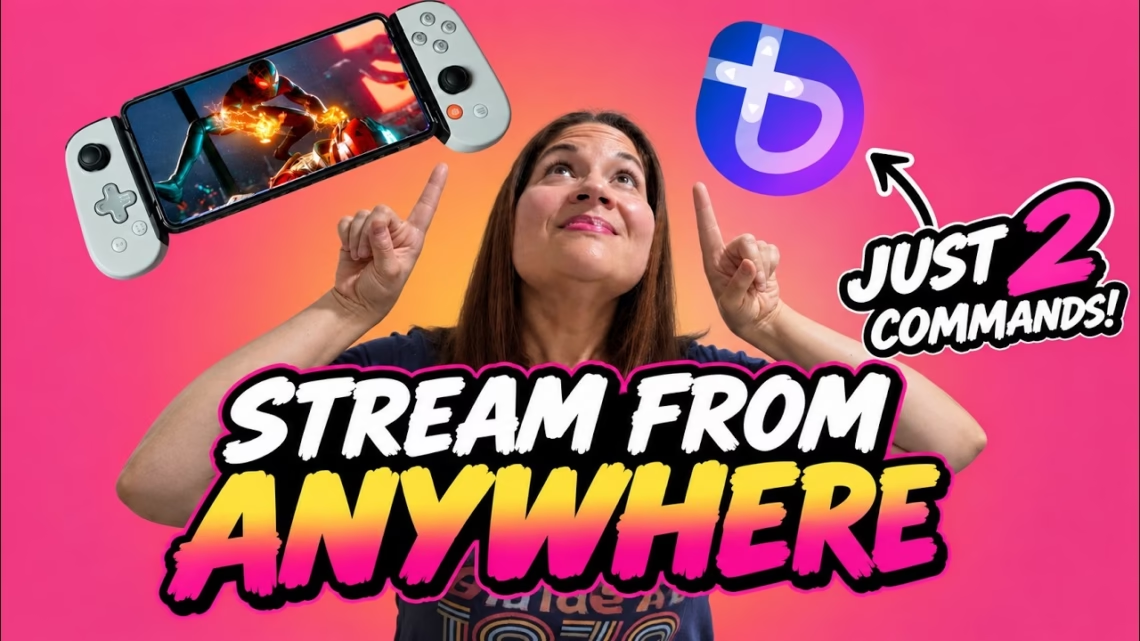
You can now control your desktop from your phone. Sliding your finger moves the cursor and tapping clicks, which is fine for navigating, but for games you’ll want a controller. We used a Backbone controller with an Android phone and played Spider-Man: Miles Morales, and it plays great.
Tuning the stream
There are lots of settings to adjust to your connection. One of the best for us was bitrate. When it was too high we got stuttering and audio problems. We lowered ours to around 4.5 Mbps and got a much more stable connection. That isn’t a magic number for everybody. Your connection is different, and the upload speed at the gaming PC matters most. Start lower, increase it, and back off if things break up.
We also stretched the video to fill the whole phone screen. It changes the aspect ratio slightly, but we thought it looked pretty cool.
Does it work away from home?
Yes. We left the house, switched to cellular data, and Spider-Man: Miles Morales ran on our PC at home and streamed to the phone. It isn’t perfect. We got a small hiccup now and then, and your experience depends on the internet connection on both sides.
It also depends on Tailscale. Whenever possible it creates a direct connection between your devices, which usually gives the best performance for game streaming. Depending on the networks, a direct connection isn’t always possible and Tailscale may relay the traffic, which can add latency.
Important: keep the PC awake
This setup doesn’t wake up a sleeping gaming PC. The easiest option is to leave the PC awake before you go out. There are apps that keep a computer awake, and you can set up Wake-on-LAN with another always-on device on your home network, but that’s a project for another day.
Summary
Sunshine hosts the game, Moonlight lets you play it, and Tailscale gives the two devices a way to reach each other even though your home internet is behind CGNAT. On Bazzite, the whole thing starts with two commands: ujust setup-sunshine and ujust enable-tailscale.