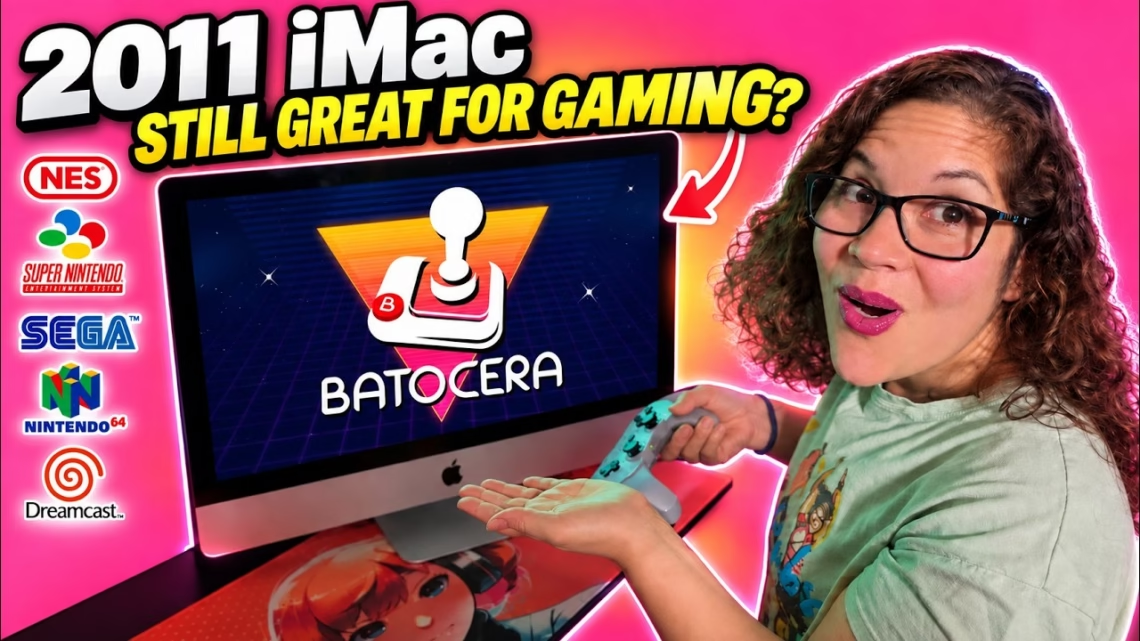
Could a 15-year-old iMac still be a good gaming machine in 2026? Ours has been running Ubuntu for a while, and instead of getting rid of it we turned the whole thing into a dedicated retro gaming console with Batocera. We erased the hard drive, installed Batocera as the operating system, added a controller and games, then tested how far the emulators go.
What you need
An old computer. We used a 21.5-inch Mid-2011 iMac, but you don’t need an iMac. Batocera runs on a huge range of regular Intel and AMD PCs, so an old Dell, HP, Lenovo, laptop or mini PC works too. You also need a USB flash drive, a wired keyboard, and eventually a controller. If you already have an old computer lying around, this can cost nothing.
Our test machine
- 21.5-inch Mid-2011 iMac, 2.5GHz Intel Core i5-2400S (second-generation, quad-core)
- AMD Radeon HD 6750M with 512MB of video memory
- 4GB RAM
- 500GB Samsung SSD that I swapped in years ago. The stock machine had a 500GB mechanical drive, so a stock iMac will be slower to boot and load
Step 1: Boot Batocera from a USB drive
First download Batocera and flash it to a USB drive. We have a video and a Short showing exactly how, so watch that first if you need a refresher.
Plug the drive into the iMac. Normally this Mac boots straight into Linux, so hold down the Option key as you turn it on. Our original wireless Apple keyboard didn’t work for this, so we used a regular PC keyboard, where you press Alt instead. After a few seconds you get Apple’s boot selection screen. Choose the external EFI boot option.
One warning: when Batocera first boots, the audio can be at 100% and the front-end music can be blaring. Connect a controller over USB and turn the music down or off quickly.
Step 2: Install Batocera on the internal drive
Right now Batocera runs from the USB drive, and we don’t want to plug it in every time. We want it to be the computer’s operating system.
Warning: this erases the iMac’s internal drive and everything on it. That was fine for us because the machine only ran Ubuntu. If you have photos, tax returns or anything you can’t replace, back it up first.
- Open the Batocera menu, go to System Settings and choose the option to install Batocera on a new disk.
- Select the iMac’s internal drive, and make absolutely sure it is the internal drive.
- Choose the x86_64 architecture and confirm.
- Batocera needs an internet connection to download the image it installs, so connect to your network.
Our Wi-Fi uses newer hardware and the old iMac didn’t get along with it, so we used an Ethernet cable instead. The install takes a while, so go and grab a coffee. When it says it’s done, shut the iMac down completely, remove the USB drive and turn it back on.
It boots straight into Batocera, with no Linux desktop and no USB drive hanging off the side. This 2011 iMac now starts up like a dedicated retro console. We had to disable the front-end music again.
Step 3: Pair a controller
Go to Controller and Bluetooth Settings and choose Pair a Bluetooth Device, or use the automatic pairing option with your controller in pairing mode. Our favourites are the 8BitDo Pro 2 and Pro 3, and both work great with Batocera. If Batocera asks you to map the controls, follow the on-screen buttons.
Step 4: Add your games
There are several ways to get your legally backed-up games onto Batocera. One of the easiest is over your network:
- From another computer on the same network, look for the BATOCERA network share, or connect directly using the machine’s IP address.
- Open the share and go into the roms folder. You’ll see a folder for every supported system.
- Copy games into the matching folder: NES games into NES, Super Nintendo into SNES, PlayStation into PSX, and so on.
- Some systems need BIOS files, which you must supply yourself from hardware you own. They go in the bios folder. Batocera’s Missing BIOS Check is very useful here.
- Back on the iMac, update the game lists and your games appear.
Step 5: Scrape box art
Batocera’s scraper can fetch box art, descriptions, videos and other details. Pick the systems you want and start scraping. If you use ScreenScraper as the source, you’ll need a ScreenScraper account. A boring list of filenames turns into something that looks like a real console library.
How far can a 2011 iMac go?
- NES, Super Nintendo and Genesis: no problems.
- PlayStation and PSP: look great, and the iMac’s screen still looks excellent after all these years.
- Dreamcast and Nintendo 64: ran fine.
- GameCube: audio problems and slowdown. We tried several settings, but we think it’s too much for this iMac to handle consistently.
Based on our testing, everything through Dreamcast ran great, and GameCube is where the old hardware hits its limit.
What we learned
Don’t assume an old computer is useless just because Windows or macOS has moved on. With Batocera on the internal drive, this iMac is now an all-in-one retro console. Turn it on, grab a controller and you’re in Batocera, with no booting into Linux, opening an emulator or hunting for a ROM.
Don’t want to erase your computer?
You can put your whole Batocera setup on a portable drive and take your retro console from computer to computer. We covered that in an earlier video: Make Your Own Portable Gaming USB Stick, Batocera Setup Guide.