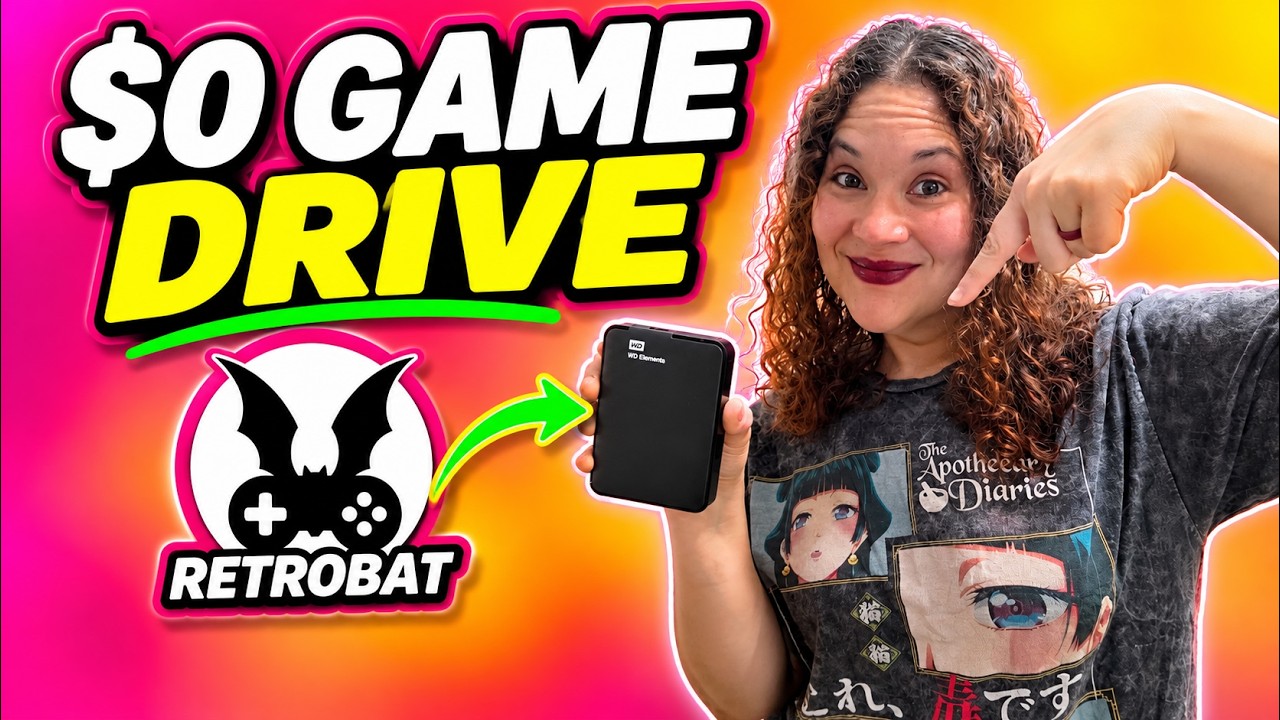
You don’t need a $27 AliExpress drive with “38,000 games” on it. We built our own retro gaming drive with RetroBat on an old hard drive from our original Xbox One, and it cost us $0. Here’s the full step by step guide, from checking the drive to playing PS3 and arcade games on any Windows PC.
Why skip the preloaded game drives
Black Friday is full of listings for cheap hard drives packed with tens of thousands of games. Those drives are often used ones with a new sticker, and you end up running software a stranger set up on your PC. They also never get updated.
Building your own takes about an hour. It works on any Windows PC, holds the games you choose, and keeps itself up to date.
What is RetroBat?
RetroBat is a free Windows app that puts all your emulators and games in a single, controller friendly menu. It sets up the emulators for you, so you don’t have to configure each one, and it runs right from the drive you install it on.
What you need
- A Windows PC. Any Windows PC will do.
- A controller. Xbox and PlayStation controllers work out of the box.
- A drive. A USB stick, a portable SSD or a regular hard drive. You don’t need a fast SSD for retro games.
We used a Western Digital 2TB USB hard drive. It’s powered by the USB cable, so there’s no power brick. An old laptop drive in a cheap USB enclosure works too.
Check your drive’s health first
Before you trust an old drive with your games, check its health with the free program CrystalDiskInfo. Look at Power On Hours.
Ours has over 71,000 hours, about eight years of running time, and it still works fine. Run the same check on any drive you buy, including the AliExpress ones. If a “new” drive shows thousands of hours, it isn’t new.
Format the drive
Formatting erases everything on the drive, so back up anything you want to keep first.
- Right click the Start button and open Disk Management.
- Find your drive, right click its partition and choose Format.
- Pick NTFS. It handles a drive getting unplugged by surprise much better.
- Give it a name. We went with GAMEDRIVE.
- Check Quick Format and click OK.
Download and install RetroBat
- Go to retrobat.org, open the download page and grab the latest version. As we filmed, that was version 8.3.1.1.
- Run the installer. If it asks to install Visual C++ or DirectX, say yes, because the emulators need them. If your PC already has them, you won’t see this screen.
- When it asks where to install, skip your C drive and choose a RetroBat folder on your gaming drive. For us that’s
E:\RetroBat.
Installing on the drive itself is what makes the whole thing portable.
Add your games and BIOS files
RetroBat doesn’t come with any games or BIOS files. Use games and BIOS files you own.
| Folder | What goes in it |
|---|---|
roms | A folder for every system. Genesis games go in megadrive, PlayStation games in psx, and so on. |
bios | BIOS files, which some systems need to run |
saves | Extra files some systems need |
emulators | Extra files some systems need |
If Windows asks to overwrite anything while you copy, go ahead.
Launch RetroBat and learn the controls
Run RetroBat.exe and plug in your controller.
- Select is your hotkey.
- Select + Start exits a game.
- Start opens the main menu.
Get box art (scraping)
Right after setup, your list is just file names. RetroBat can download box art and descriptions for every game, which is called scraping.
- Make a free account on ScreenScraper.
- In RetroBat, press Start and go to Scraper, then Accounts.
- Add your information.
- Open the Scrape tab and choose Scrape Now.
If a game doesn’t get artwork, hold the South button on it, choose Scrape and simplify the search name. That usually finds the right match.
Change the look with themes
Go to Updates and Downloads, then Themes, and pick one you like. Our favorite is Ckau Book, for its carousel.
Take it anywhere
Plug the drive into another Windows PC and run RetroBat.exe. No install needed. Keep backups of your games either way.
Light guns: Sinden tips
RetroBat supports light guns like the Sinden. Install the latest Sinden software on your PC, run it and enable your gun before you start a game.
- If the gun doesn’t respond, unplug it and plug it back in.
- The Sinden needs a white border around the game to track your aim.
- If the border covers part of the action, resize it with the button nearest the trigger on the right side of the gun.
How well does it run?
We tested PlayStation 3, ST-V, Model 3, arcade and Atomiswave games, and they all ran great on our machines. Most games are automatically upscaled to what your PC can handle. Model 3 games ran flawlessly with no changes to the controls or graphics. Performance depends on your PC, and PS3 needs a strong one.
Keeping it updated
Unlike the AliExpress drives, yours keeps getting better: bug fixes, better performance and new systems, all free. Go to Updates and Downloads in the main menu to update RetroBat.
Gear we recommend
- WD Elements 2TB Portable Hard Drive (the drive in the video)
- Lexar 256GB USB A/USB C Thumb Drive (small and simple)
- Lexar ES3 512GB Portable SSD, USB 3.2 Gen 2 (fast SSD option)
- UGREEN 2.5″ Hard Drive Enclosure, USB C 3.1 Gen 2 to SATA III (for an old laptop drive)
These are Amazon affiliate links. We earn a small commission at no extra cost to you. Totally optional, only if you want to help out the channel.
Can you beat us?
Got an old drive in a drawer? Check its power on hours and tell us in the video comments. We want to know if anyone beats our 71,000.